To save to PDF properly in MS Word or PowerPoint, do not “Print to PDF.” Printing a file to a PDF will flatten and lose all structure, and any accessibility fixes will be lost.
- Go to File
- Click "Save a Copy"
- Change type to PDF.
- Click "More Options"
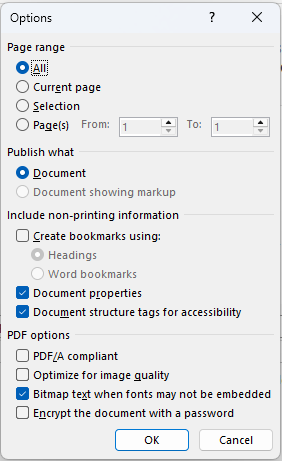
- Click "Options" (see screenshot below)
- Be sure that under "Include non-printing information: you have the following selected:
- Document properties
- Document structure tags for accessibility.
- Click OK
- Save PDF using desired filename and location. Use dashes (-) or underscores (_) instead of spaces in filename.